How to publish your plugin?

Contents
GameAP plugins are published on plugins.gameap.dev — that is where users install them from, straight out of the panel. This guide walks through the whole path: from creating the plugin listing to shipping new versions automatically from CI.
It assumes your plugin is already written and builds into a .wasm. You will also need an account
on plugins.gameap.dev: either a regular sign-up with email confirmation, or sign-in through GitHub,
GitLab or Google.
There are two ways to upload a version: manually through the dashboard, or through the API from CI. Start with the dashboard, and switch to CI once your build settles.
Step 1. A developer account #
Publishing plugins requires an account with developer status. It is granted for free and immediately — all it takes is accepting the publication rules.
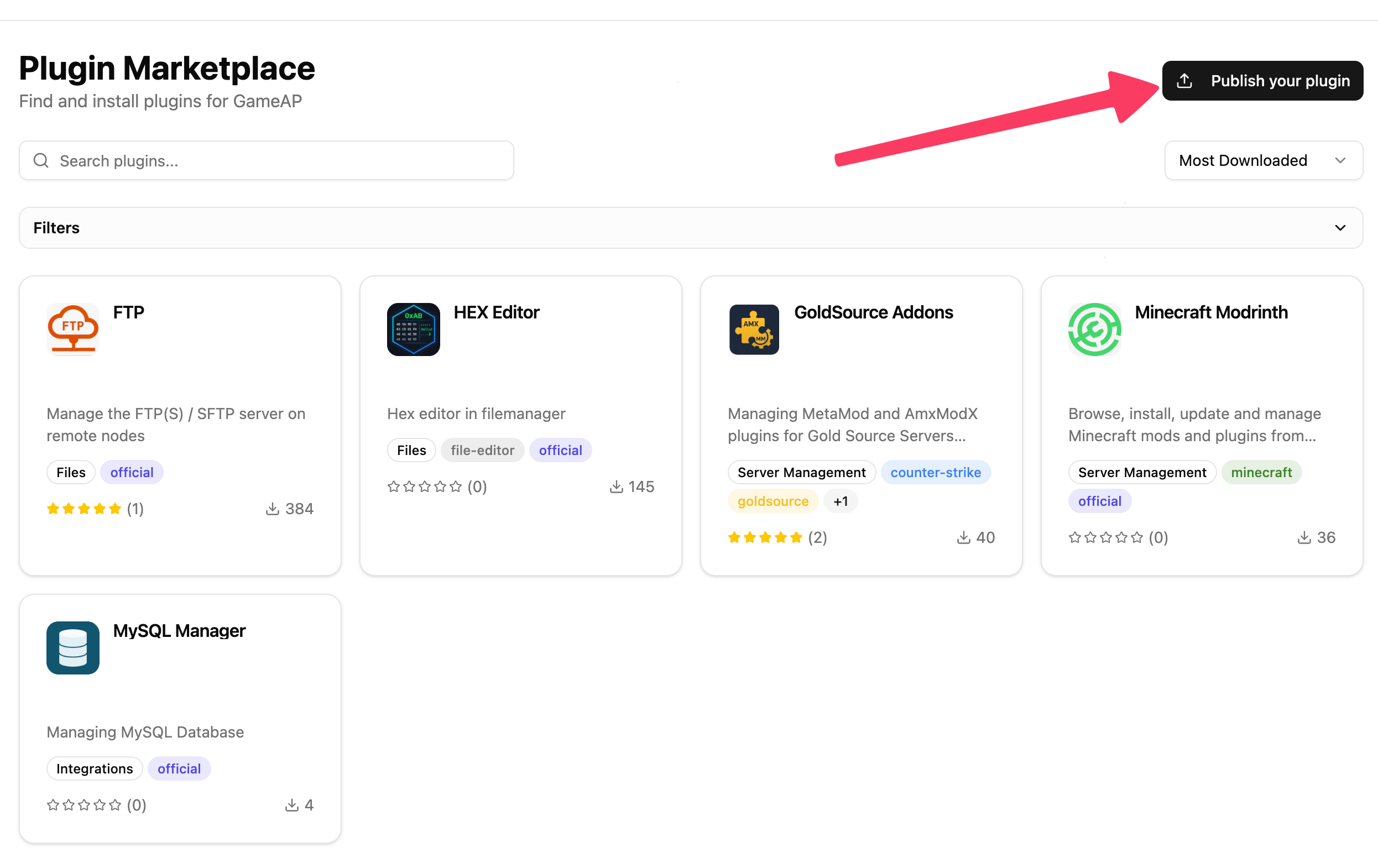
In the plugin marketplace press Publish your plugin — the button in the top-right corner.
The publication rules page opens. In short, what you agree to:
- Working, quality plugins — only functional, tested ones that do what their description promises.
- No malicious code — no backdoors, hidden miners or obfuscated logic; any collection of user data must be clearly disclosed.
- Rights and licensing — you own the code or may distribute it, third-party licenses are respected, and your plugin’s license is stated.
- GameAP compatibility — the plugin works with current panel releases and follows the plugin format requirements.
- Updates and support — critical bugs and security issues get fixed within a reasonable time, and user reports get an answer.
- Moderation — every plugin and every version is reviewed, and a plugin that breaks the rules can be removed at any time.
- No spam or duplicates — no misleading names, no keyword stuffing.
The full text is on the page itself, and it is worth reading in full.
Press Agree at the bottom. The role is granted instantly, with no review and no waiting: a Developer section appears in the sidebar with Dashboard, My Plugins, New Plugin and Support, and an email arrives telling you that you are now a developer.
Note. The rules can only be accepted with a verified email: otherwise the Agree button stays disabled and the page shows a reminder to confirm your address. Accounts created through GitHub, GitLab or Google are considered verified right away.
The Publish your plugin button is visible to everyone, including visitors who are not logged in. Without a session the rules page shows Log in to agree instead — signing in brings you back to the rules.
Step 2. Creating the plugin #
Pick New Plugin in the left menu — the creation form opens.
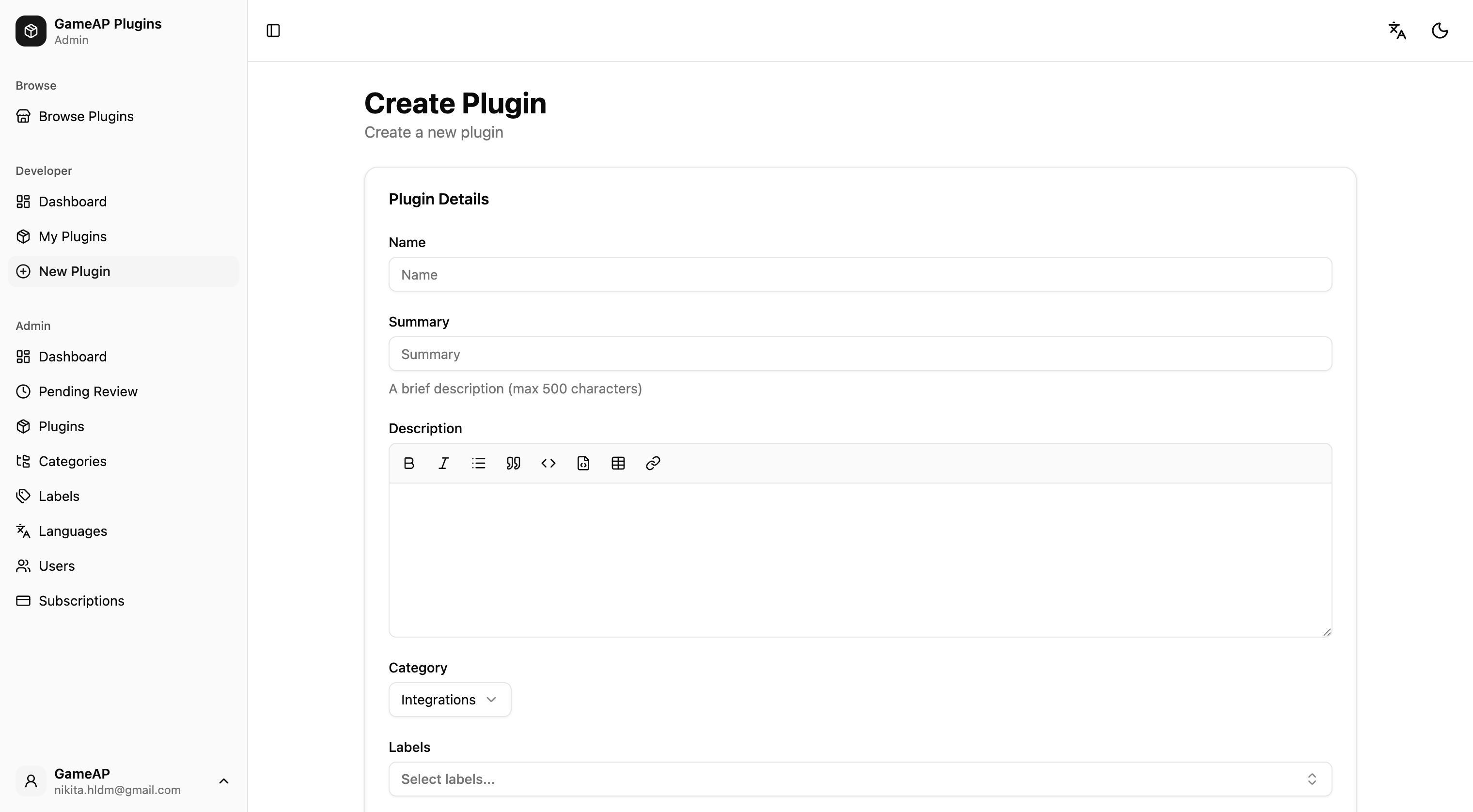
| Field | Required | What to put there |
|---|---|---|
| Name | yes | Up to 255 characters |
| Summary | yes | A single sentence for the catalogue card, up to 500 characters |
| Description | yes | Full description in Markdown — the field has a formatting toolbar |
| Category | no | One of the three below |
| Labels | no | Keywords that make the plugin easier to find |
| License | no | Free text: MIT, GPL-3.0, Proprietary |
| Source URL | no | Link to the sources, if they are open |
| Repository URL | no | Link to the repository |
| Homepage URL | no | The plugin’s or the author’s website |
The categories:
- Server Management — most plugins. Anything that adds actions on a game server.
- Files — file manager extensions: editors, viewers for specific formats.
- Integrations — plugins that substantially extend what the panel can do, database management for example.
The icon cannot be uploaded at this step — the form says so explicitly, the uploader appears right after creation.
Note. Source URL and Repository URL affect more than the listing. If neither is filled in, every version will have to ship a source archive — moderators need something to verify the build against. Fill in at least one of them if your sources are public.
Step 3. The plugin ID #
After you press Create you land on the plugin’s edit page. Its first block is the Plugin ID — a read-only field with a copy button.
This ID has to go into your plugin’s source code — the id field of the PluginInfo struct
returned by GetInfo. It is how the panel matches an installed plugin with its marketplace entry.
The ID is generated once at creation and cannot be changed. Under the hood it is a 64-bit
number (8 random bytes) written in base32 — 13 latin characters and digits, for example
fmqnme42gg7da. The same ID appears in the plugin page URL and in the CI endpoint address.
How it looks in existing plugins:
- plugin-mysql — the
PLUGIN_IDconstant (fmqnme42gg7da) - plugin-goldsrc-addons —
PLUGIN_ID(ezvdsxmlu6fbk) - plugin-minecraft-modrinth —
PLUGIN_ID(dshdabjp2l73a)
Note. Write the ID in and rebuild the
.wasmbefore uploading the first version. Versions are immutable: you cannot re-upload a file under the same number, you would have to bump it.
Step 4. Icon and translations #
The same edit page has an icon uploader: JPG, PNG, WebP or SVG, up to 2 MB, 128×128 recommended.
The plugin page has a Translations block. The catalogue is bilingual and every visitor sees the listing in their own language: without a translation a Russian user gets the English description and vice versa. Name, summary and description are translated separately per language — five minutes of work that noticeably change how the listing reads.
Step 5. Uploading a version #
On the plugin page find the Versions card and press Upload Version.
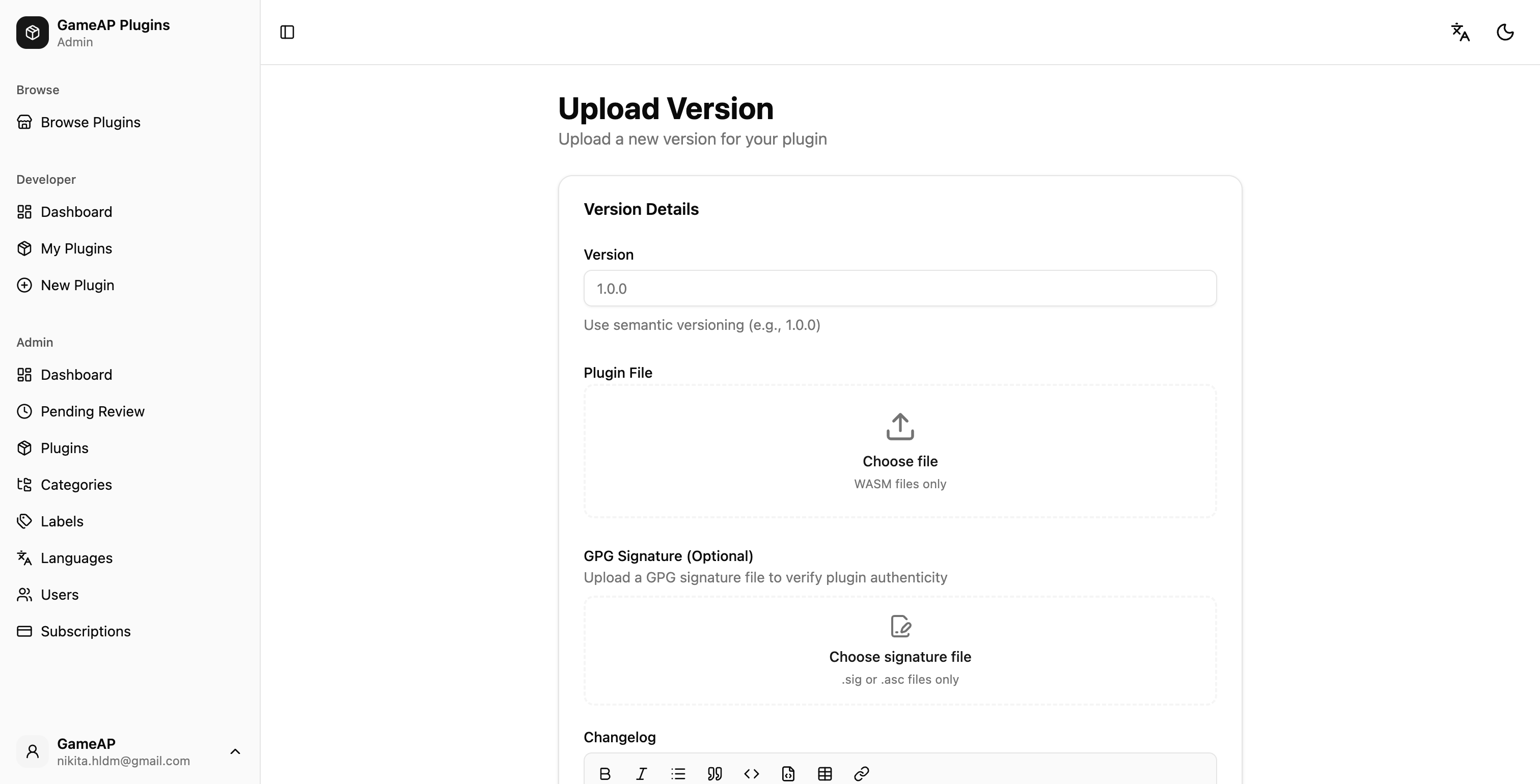
| Field | Required | What to put there |
|---|---|---|
| Version | yes | Semantic version: 1.0.0, 1.2.0-beta.1 |
| Plugin File | yes | The compiled .wasm, up to 100 MB |
| GPG Signature | no | Detached .sig or .asc signature, up to 1 MB |
| Source Code Archive | depends | .zip or .tar.gz, up to 50 MB |
| Changelog | no | What changed since the previous version, in Markdown |
| Stable Release | — | A switch, on by default |
| Min GameAP Version | no | The panel version your plugin starts working from |
The GPG signature is optional but welcome: the server stores it as is and never verifies it — it exists so that users can check the file’s authenticity themselves.
The source code archive is required when the plugin has neither Source URL nor Repository URL filled in — the form flips the field’s label from “(Optional)” to “(Required)” on its own. The archive is used only for moderation and build verification; it is never published and is not reachable through any public endpoint.
Note. A version uploaded through the dashboard stays a draft. Until you submit it for review, nobody sees it.
Version screenshots #
Right after the upload a second step opens — Add Screenshots. Screenshots belong to a specific version: JPG, PNG or WebP, up to 10 of them, 5 MB each. The step can be skipped and picked up later from the version page.
Step 6. Submitting for review #
Plugins go through moderation — against the very publication rules you accepted in step 1. The plugin page header has a Submit for Review button — it is only visible while the plugin is in the Draft or Rejected status.
A plugin with no versions cannot be submitted — upload a version first. Submitting a version for review from the versions table also moves the plugin itself from Draft to Pending Review, so the header button is usually not needed separately.
| Status | What it means | What you can do |
|---|---|---|
| Draft | Created, not submitted anywhere | Edit, submit for review, delete |
| Pending Review | Waiting for a moderator | Wait |
| Rejected | A moderator sent it back | Fix it and submit again |
| Released | Available to everyone in the catalogue | Upload new versions |
| Approved | An intermediate status in the data model | — |
| Deprecated | Marked as out of date | Still installable, but flagged |
| Retracted | Withdrawn from publication | Not available for installation |
Approval moves the plugin and the version straight to Released. Only objects in that status are publicly visible: if a plugin is released but its only version is still pending review, there is nothing to install.
The rejection reason arrives by email — the plugin page only shows the status, so check your inbox.
Deploy tokens #
To publish versions from CI you need a deploy token. It lives at the very bottom of the plugin page, in the Deploy Tokens card.
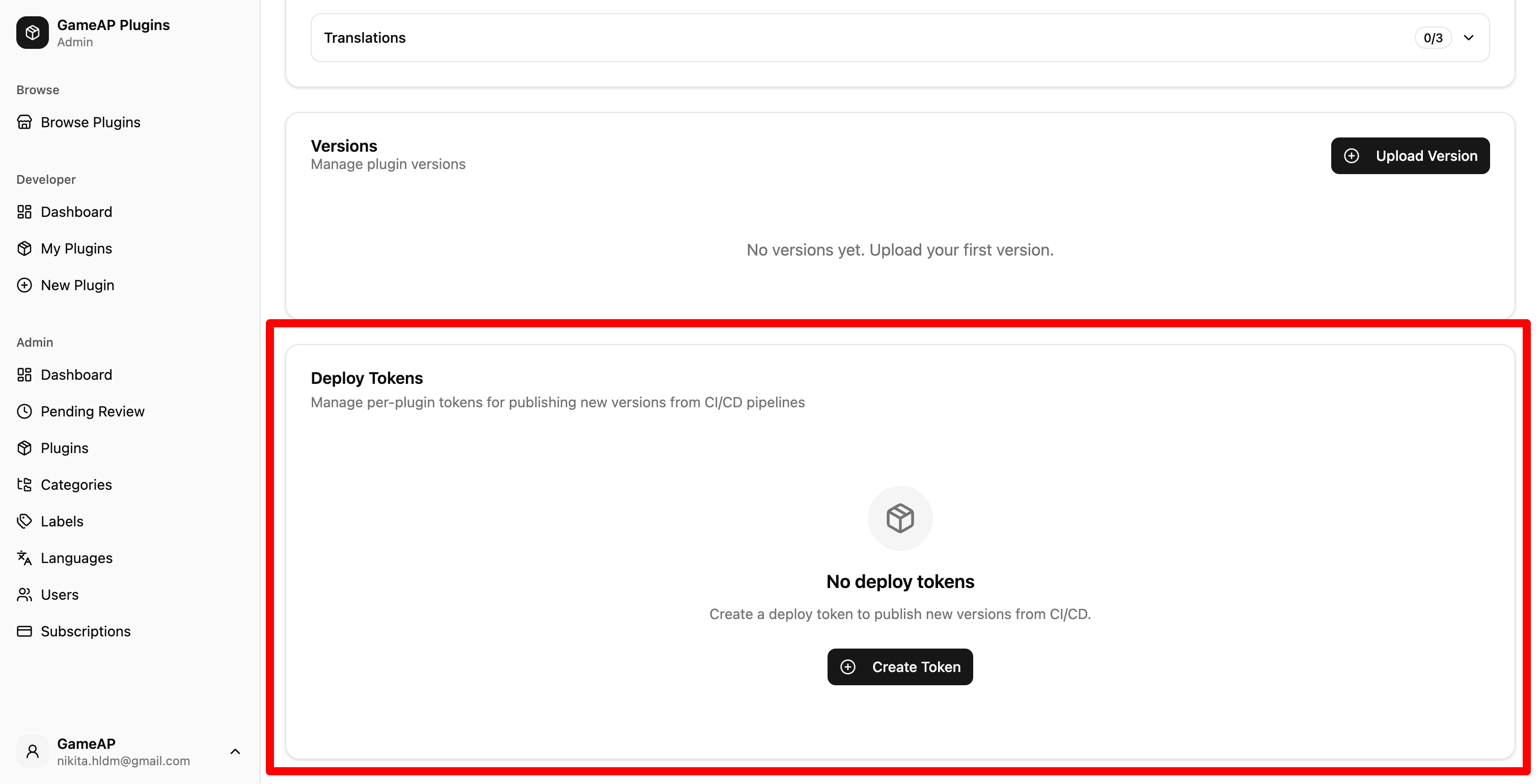
Press Create Token and fill in the dialog: a name (GitHub Actions, for example) and,
optionally, an expiry date.
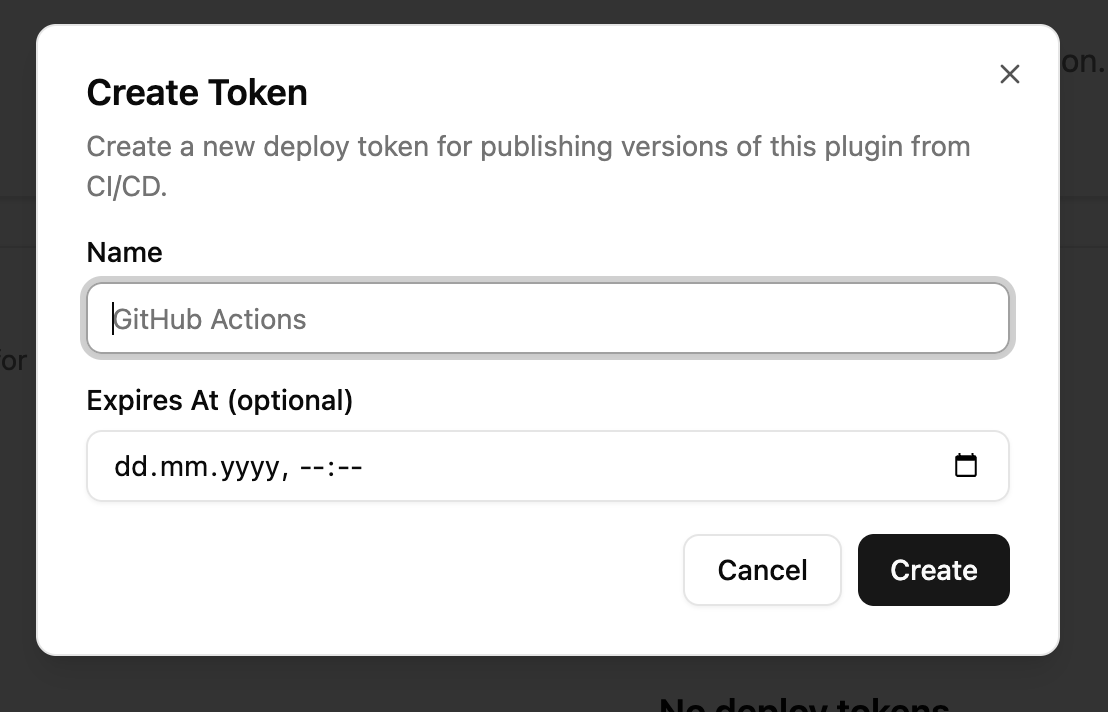
Note. The token is shown exactly once, right after creation. Only its hash is kept on the server and the value cannot be recovered — copy it straight into your CI secrets.
Worth knowing about tokens:
- A token is bound to one plugin and can only upload versions of it. It opens neither other plugins nor the rest of the API.
- The format is
gapd_plus 43 characters, 48 in total. The prefix is easy for secret scanners to catch. - The table shows the token prefix, the creation date, the last use and the expiry — handy for working out which token is still in use.
- Revocation is immediate: a pipeline with a revoked token breaks on its next run.
- A single plugin can hold up to 20 tokens.
Publishing from CI #
The CI endpoint accepts a new version without an interactive login — it authenticates with a deploy token.
Uploading with curl #
curl --fail-with-body -sS \
  -H "Authorization: Bearer $GAMEAP_DEPLOY_TOKEN" \
  -F "version=1.2.3" \
  -F "file=@build/plugin.wasm" \
  -F "signature=@build/plugin.wasm.asc" \
  -F "changelog=Fixed a crash on server restart" \
  -F "min_gameap_version=4.1.0" \
  -F "is_stable=true" \
  "https://plugins.gameap.dev/api/ci/plugins/$GAMEAP_PLUGIN_ID/versions"
The request is a POST with multipart/form-data. The form fields:
| Field | Required | Description |
|---|---|---|
version | yes | Semantic version, e.g. 1.2.3 |
file | yes | The compiled .wasm, up to 100 MB |
signature | no | Detached GPG signature, up to 1 MB |
source | depends | Source archive .zip/.tar.gz up to 50 MB; required when the plugin has neither Source URL nor Repository URL |
changelog | no | Release notes; convenient to pass from a file: -F "changelog=<CHANGELOG.md" |
min_gameap_version | no | Minimum GameAP version |
min_plugin_api_version | no | Minimum Plugin API version (the dashboard form has no such field) |
is_stable | no | true or 1 marks the version as stable |
submit | no | Defaults to true; false keeps the version a draft |
Do not put a trailing slash on the URL. The router answers .../versions/ with a 301, and
curl does not replay the POST body on a redirect — the upload would silently turn into a GET.
A successful response is a 201 with a body like:
{
  "id": 123,
  "plugin_id": "fmqnme42gg7da",
  "version": "1.2.3",
  "file_size": 1048576,
  "file_hash": "9f86d081884c7d65...",
  "has_source": false,
  "status": "pending_review"
}
GitHub Actions #
This workflow fires when a GitHub release is published, builds the plugin, signs it and ships it to plugins.gameap.dev. The release body becomes the changelog, and the version is marked stable only when the release is not a pre-release.
name: Publish plugin

on:
  release:
    types: [published]

jobs:
  publish:
    runs-on: ubuntu-latest
    steps:
      - uses: actions/checkout@v4

      - name: Build plugin
        run: make wasm            # must produce build/plugin.wasm

      - name: Sign plugin
        env:
          GPG_SIGNING_KEY: ${{ secrets.GPG_SIGNING_KEY }}
        run: |
          printf '%s' "$GPG_SIGNING_KEY" | gpg --batch --import
          gpg --batch --yes --detach-sign --armor \
            -o build/plugin.wasm.asc build/plugin.wasm

      - name: Publish to plugins.gameap.dev
        env:
          GAMEAP_DEPLOY_TOKEN: ${{ secrets.GAMEAP_DEPLOY_TOKEN }}
          GAMEAP_PLUGIN_ID: ${{ vars.GAMEAP_PLUGIN_ID }}
          TAG: ${{ github.event.release.tag_name }}
          RELEASE_BODY: ${{ github.event.release.body }}
          PRERELEASE: ${{ github.event.release.prerelease }}
        run: |
          VERSION="${TAG#v}"
          printf '%s' "$RELEASE_BODY" > "$RUNNER_TEMP/changelog.md"
          ARGS=(--fail-with-body -sS
            -H "Authorization: Bearer ${GAMEAP_DEPLOY_TOKEN}"
            -F "version=${VERSION}"
            -F "file=@build/plugin.wasm"
            -F "signature=@build/plugin.wasm.asc"
            -F "changelog=<${RUNNER_TEMP}/changelog.md")
          if [ "$PRERELEASE" != "true" ]; then
            ARGS+=(-F "is_stable=true")
          fi
          curl "${ARGS[@]}" \
            "https://plugins.gameap.dev/api/ci/plugins/${GAMEAP_PLUGIN_ID}/versions"
VERSION="${TAG#v}" strips the leading v so that tag v1.2.3 publishes as version 1.2.3.
The production version of this workflow, with a frontend build, a Cargo cache and an HTTP status check, lives in plugin-mysql.
Configuring the GitHub repository #
The token and the plugin ID must not sit in the code — they belong in the repository settings. Open Settings → Secrets and variables (under Security and quality) → Actions.
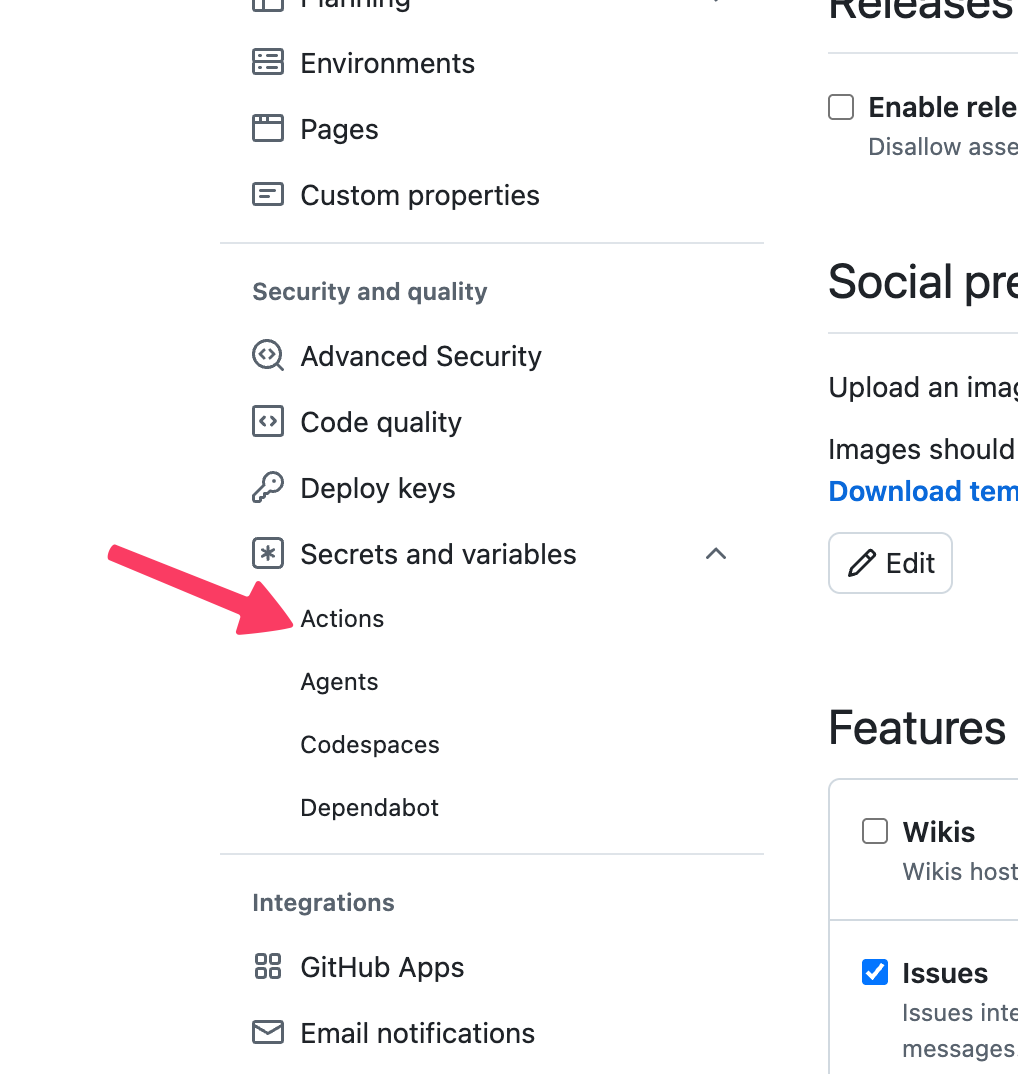
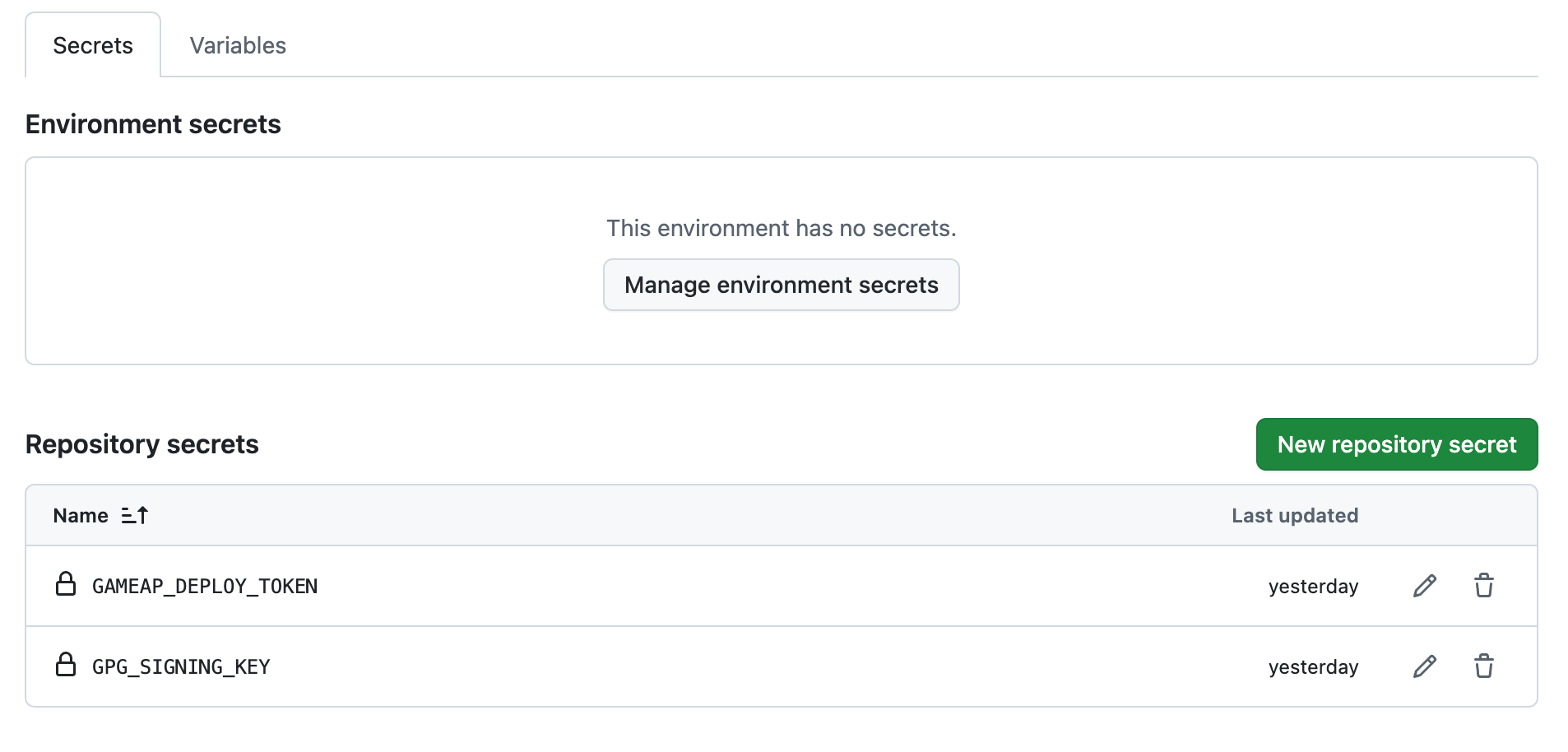
On the Secrets tab press New repository secret and add:
| Name | Value |
|---|---|
GAMEAP_DEPLOY_TOKEN | The deploy token you copied at creation time (it starts with gapd_) |
GPG_SIGNING_KEY | An ASCII-armored private GPG key, if you sign your builds |
On the Variables tab press New repository variable and add:
| Name | Value |
|---|---|
GAMEAP_PLUGIN_ID | The plugin ID, e.g. fmqnme42gg7da |
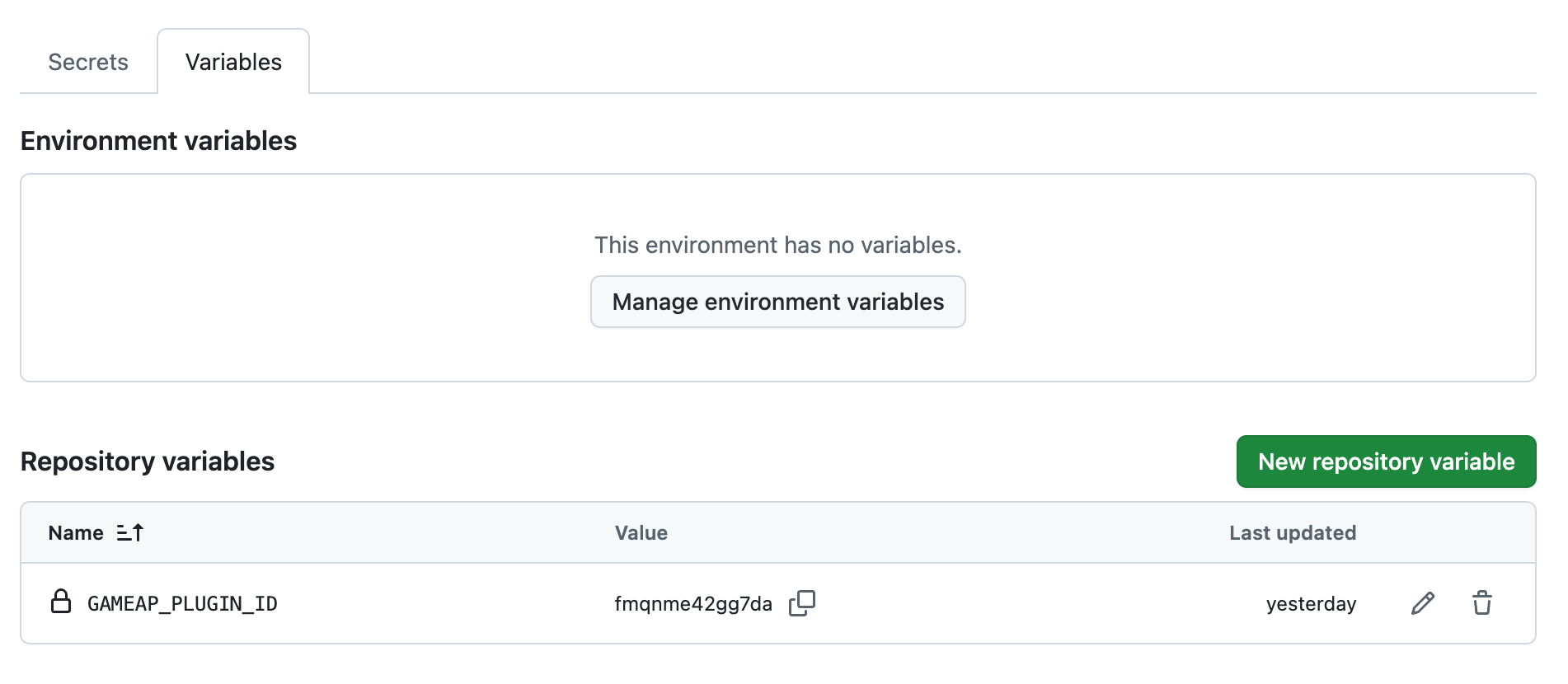
The plugin ID is the same base32 identifier you wrote into PluginInfo. Copy it with the button
next to the Plugin ID field on the edit page, or from the Details block on the plugin page.
The ID goes into variables rather than secrets on purpose: it is not a secret, and having it visible in the CI logs makes failures far easier to diagnose. The token, on the other hand, is always a secret.
Here is how to export a private GPG key for GPG_SIGNING_KEY:
gpg --armor --export-secret-keys YOUR_KEY_ID
Publish the public key somewhere users can find it — in the plugin’s README, for instance — so that the signature is verifiable.
Dashboard and CI: different defaults #
| What | Dashboard | CI |
|---|---|---|
| Stable release | The switch is on by default | is_stable defaults to false — pass it explicitly |
| Submitting for review | Manual, by pressing a button | submit defaults to true — the version goes to review at once |
| Screenshots | Offered right after the upload | Not supported, add them through the dashboard |
If all you want from CI is to put the file up and finish the metadata by hand, pass submit=false
and the version stays a draft.
Errors #
| Code | Cause |
|---|---|
400 | Invalid plugin ID, a malformed multipart body, or no file passed |
401 | The token is missing, invalid or expired; the header is not in the Bearer gapd_... form |
403 | The token is valid but was issued for a different plugin |
409 | A version with that number already exists |
422 | The version fails the semver check; the source archive is missing, too large or not a .zip/.tar.gz; the file or signature size limits are exceeded |
Error bodies come in a common shape:
{
  "status": "error",
  "error": "version already exists",
  "message": "version already exists",
  "http_code": 409
}
After a 5xx error, do not blindly retry the upload. Writing the version and submitting it for
review are not a single transaction: the version may already exist, and a retry returns 409. Open
the dashboard and check what actually happened.
Updating and withdrawing versions #
A new version is uploaded exactly like the first one — through the dashboard or from CI. Versions
already uploaded are immutable: re-uploading a file under the same number is not possible, the
attempt returns 409. If the build was wrong, bump the patch version.
Every row in the versions table has its own actions:
- Edit — change the changelog and the metadata.
- Submit for Review — for drafts and rejected versions.
- Deprecate — for released versions. The version stays available but is flagged as out of date.
- Retract — for released and deprecated versions. The version is withdrawn from publication.
Only a plugin in the Draft status can be deleted. A released plugin cannot be removed — it can be retracted.
Checklist #
- The email is verified, the publication rules are accepted, and the account has developer status.
- The plugin is created, and the name and both descriptions are filled in.
- Source URL or Repository URL is filled in — otherwise every version needs a source archive.
- The plugin ID is written into
PluginInfo.idand the.wasmwas rebuilt afterwards. - The icon is uploaded and the listing translations are in place.
- The version is uploaded, with a signature and screenshots attached.
- The version is submitted for review, not left as a draft.
- For CI: a deploy token is created and stored in the secrets, the plugin ID is in the variables.
- The workflow has no trailing slash on the URL and passes
is_stableexplicitly. - After the release, the plugin and the version are confirmed to be in the Released status.